AWS UG 2026 Summer Community Day — Use your wristband as a handy NFC tag: flash your blog, website, Android app, or WeChat mini program onto it and share with a single tap.
AWS UG 2026 Summer Community Day · NFC Wristband Guide
At AWS UG 2026 Summer Community Day, every attendee receives an NFC wristband with a rewritable tag inside. After the event, you can erase the default content and write your own — a personal blog, portfolio, social link, Android app shortcut, or WeChat mini program entry.
This guide covers backing up your wristband first, NFC tag basics, the NDEF data format, the NTAG215 chip used in our wristbands, and three ready-to-use examples themed for the Amazon Web Services User Group (AWS UG China) community.
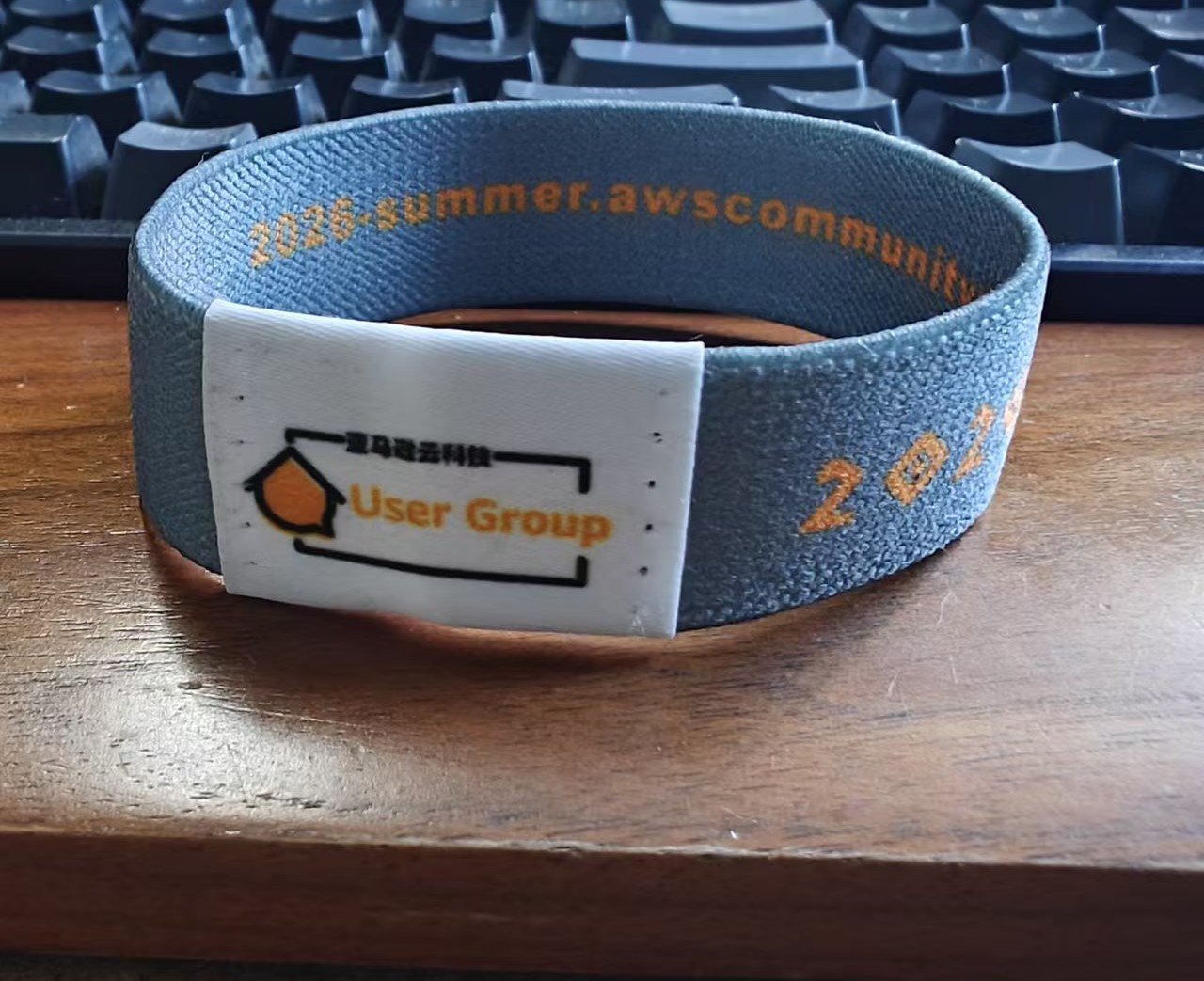
Back Up Your Wristband First
Before you overwrite the default Community Day content, save what's already on the tag. Writing new data replaces the previous NDEF message — there is no undo unless you kept a backup.
Step 1 — Read the tag
- Install NFC Tools (Android / iOS) and enable NFC on your phone.
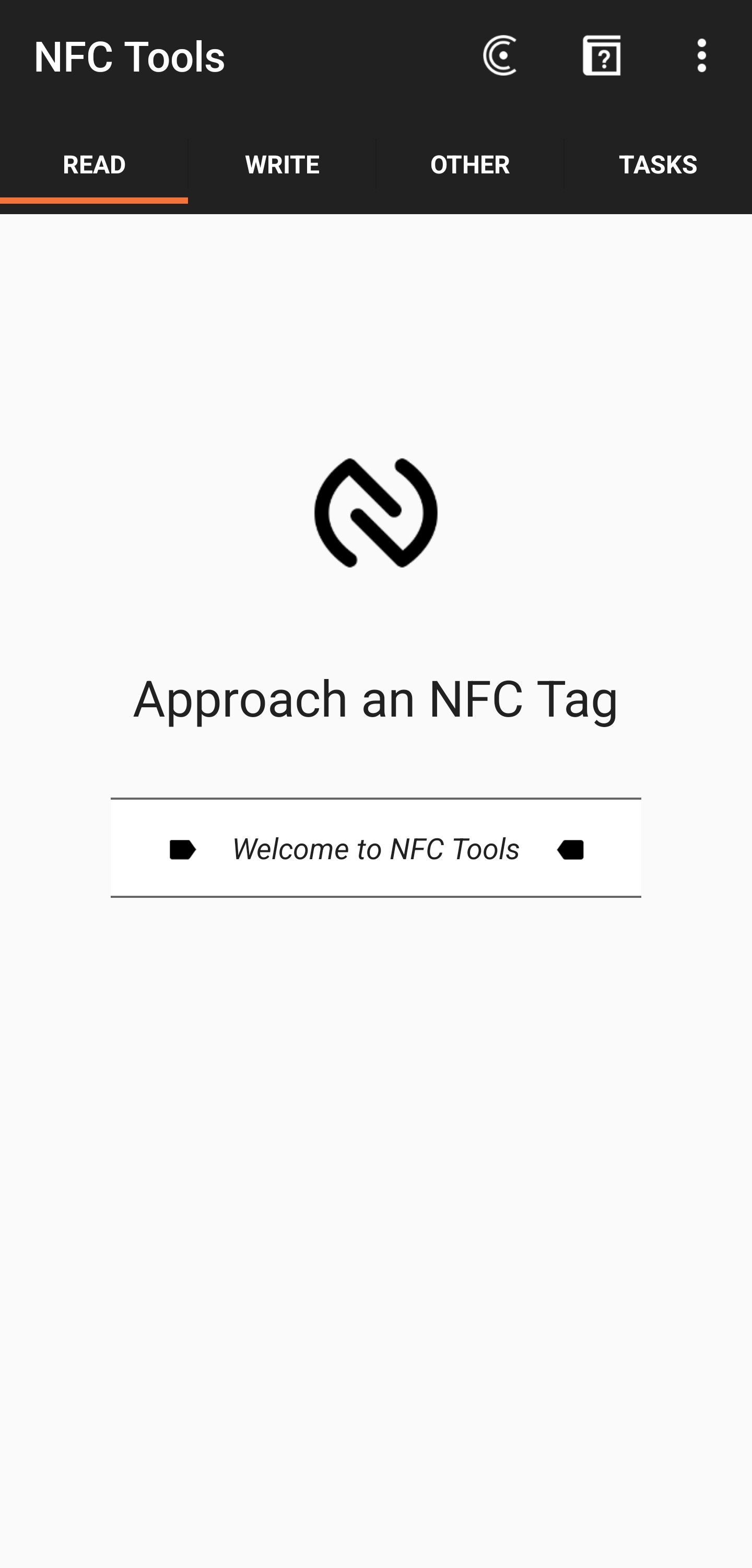
- Open NFC Tools → Read.
- Hold the phone flat against the wristband chip (the flat pad on the inside of the band).
- Wait until the app lists the tag details — chip type (NTAG215), UID (unique tag ID), and all NDEF records (usually a URI pointing to the official activity page).
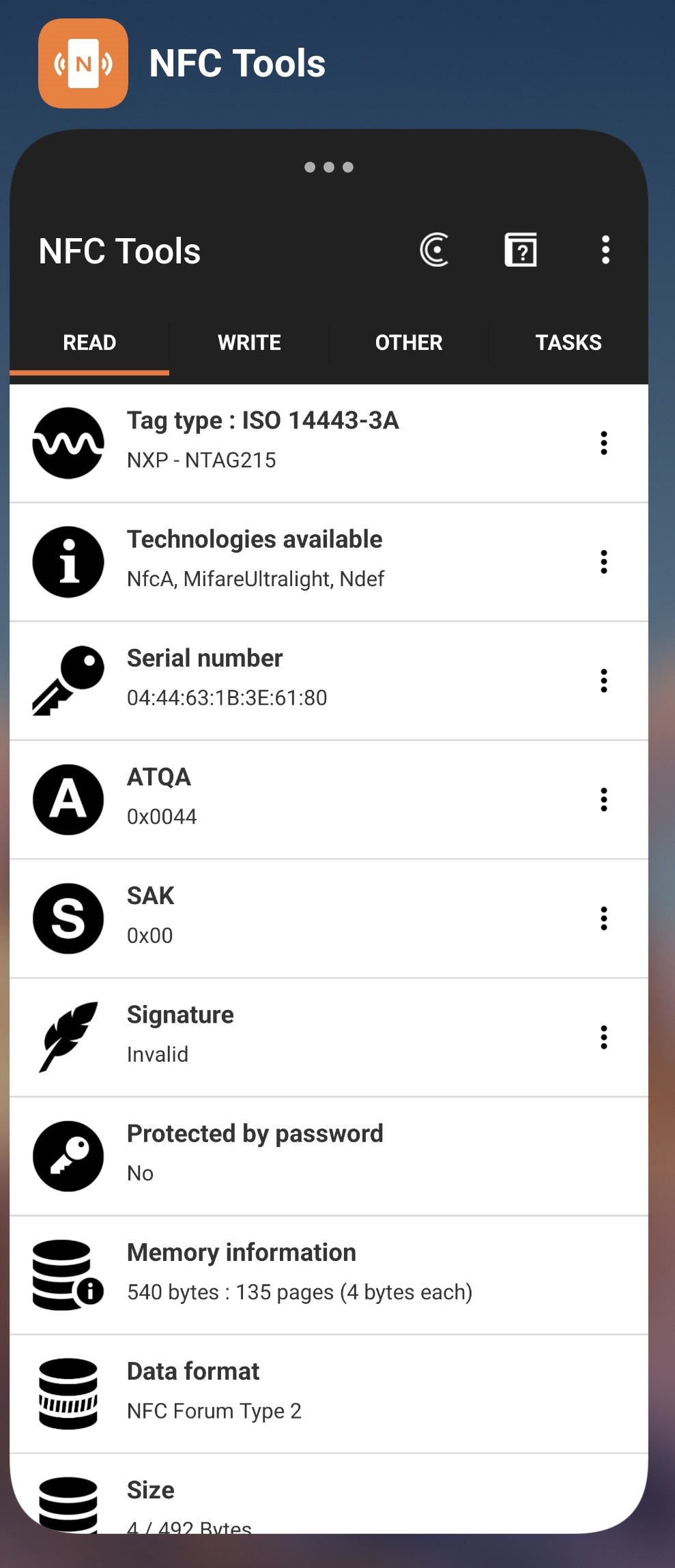
Step 2 — Save the tag profile in NFC Tools
After a successful read:
- Tap Save (disk icon) or Add to saved tags — exact wording varies by app version.
- Give it a clear name, e.g.
Community Day wristband — original backup. - Confirm the saved entry shows the same URI / records you just read.
You can later restore this profile via NFC Tools → Write → Saved tags if you want the factory content back.
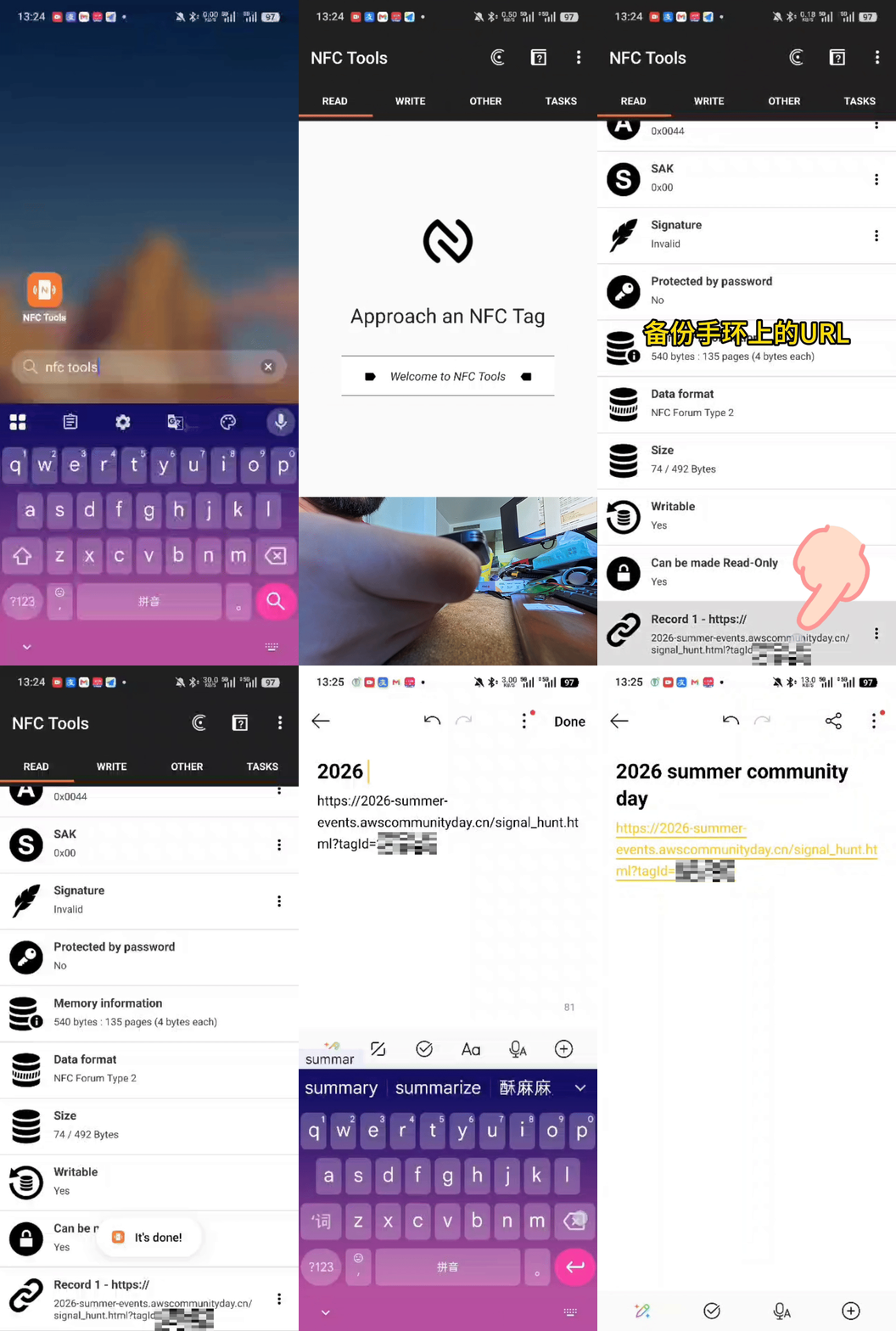
Step 3 — Keep a human-readable copy
Do at least one of the following so you still have the data outside the app:
| Method | What to capture |
|---|---|
| Screenshot | Full Read screen showing chip type, UID, and every record |
| Copy the URL | Paste the activity URI into Notes, email, or a cloud doc |
| Write it down | UID + URL on paper if you prefer offline backup |
Most Community Day wristbands ship with a single URI record — the official activity landing page (e.g. https://awscommunity.cn/…). Back up that full URL; you may need it to rejoin event pages or share the original link with friends.
Each Write replaces the entire NDEF message on the tag. If you experiment with Example 1, then Example 2, save again after any version you might want to restore later.
What Is NFC?
Near Field Communication (NFC) is a short-range wireless protocol (about 4 cm). When you hold a phone against an NFC tag or wristband, the phone reads or writes data stored on the tag — no pairing, no battery on the tag side.
About the NFC Forum
The NFC Forum is the global industry association that defines NFC technology standards. It harmonizes contactless protocols so that billions of phones, tags, and readers work the same way — all it takes is a tap.
What the Forum maintains that matters for this guide:
| Area | What it covers |
|---|---|
| Specifications | NDEF, NFC Forum Tag Types (Type 1–5), device behaviour |
| Certification | Test labs and compliance programs so tags and phones interoperate |
| Use cases | Contactless payments, transit cards, access control, smart posters (tap-to-open URLs), device pairing, and more |
When your phone's OS parses standard NDEF data from the wristband (reading the tag usually does not require a separate NFC reader app), it follows NFC Forum specifications. What opens next — a browser, an installed app, or WeChat — depends on the record type and what apps the recipient has installed.
Typical use cases at community events:
| Scenario | What gets written |
|---|---|
| Personal branding | Your blog, GitHub, or portfolio URL |
| Community links | Official sites like awscommunity.cn |
| Mobile apps | Android App Record to launch an installed app |
| WeChat ecosystem | URL Link (WeChat required) |
You need a phone with NFC enabled (most modern Android and iPhone models). Install a tag-writing app such as NFC Tools (Android / iOS) or NXP TagWriter (Android).
Common NFC Tag Types
Not all NFC chips are the same. Tags differ in memory size, security, and whether they speak NDEF (the standard format phones understand out of the box).
| Chip | NFC Forum Type | User Memory | NDEF Support | Typical Use |
|---|---|---|---|---|
| NTAG213 | Type 2 | 180 bytes | ✅ Yes | Stickers, business cards, small payloads |
| NTAG215 | Type 2 | 504 bytes | ✅ Yes | Event wristbands, Amiibo, medium URLs |
| NTAG216 | Type 2 | 888 bytes | ✅ Yes | Longer URLs, vCard, multiple records |
| MIFARE Ultralight | Type 2 | 64–192 bytes | ✅ Yes | Disposable tickets, simple links |
| MIFARE Classic | Type A (legacy) | 1 KB / 4 KB | ⚠️ Via wrapper | Access cards, older deployments |
| MIFARE DESFire | Type 4 | 2–8 KB | ✅ Yes | Transit, payment, secure access |
| ISO 15693 | Type 5 | Varies | ✅ Yes | Inventory, logistics (less common on phones) |
For URLs and standard NDEF records, choose NTAG21x (Type 2) — phones can identify tag content at the OS level. Opening a webpage, app, or WeChat mini program still depends on whether the recipient has a browser, the target app, or WeChat installed. For Community Day wristbands, we standardised on NTAG215 for the best balance of cost, capacity, and compatibility.
NDEF — NFC Data Exchange Format
NDEF is the universal "language" NFC tags use to store structured data. When you tap a tag, the phone OS parses NDEF records and decides what to do — open a browser, launch an app, show text, etc.
NDEF message structure
NDEF Message
├── Record 1  (e.g. URI — a web link)
├── Record 2  (e.g. AAR — Android app package name)
└── Record N  (optional extra records)
Each record has a Type Name Format (TNF) and a type that defines the payload:
| TNF | Type | Purpose | Example payload |
|---|---|---|---|
| Well Known | U (URI) | Open a URL | https://awscommunity.cn/ |
| Well Known | T (Text) | Display plain text | Hello Community Day! |
| Well Known | Sp (Smart Poster) | Title + URI combo | Event poster links |
| External | android.com:pkg | Android Application Record (AAR) | com.amazon.aws.cardclash |
| MIME | text/plain, custom | Arbitrary typed data | vCard, JSON |
URI identifier codes
URI records often use a prefix code to save space. Code 0x04 means the prefix https:// is implied:
Raw URI record payload:  [0x04] + "awscommunity.cn/"
Phone resolves to:       https://awscommunity.cn/
Android tries AAR first — if the app is installed, it launches directly. If not, the OS falls back to the next record (usually a URI pointing to the Play Store or a website). Always add a URI fallback when writing app launch records.
Our NFC Tag — NTAG215
◆ NTAG215 — the chip inside your Community Day wristband
| Spec | Value |
|---|---|
| Standard | ISO/IEC 14443 Type A · NFC Forum Type 2 Tag |
| User memory | 504 bytes |
| Typical NDEF capacity | ~492 bytes (after capability container) |
| Rewritable | Yes — can be locked permanently if you choose |
| Phone compatibility | Android (native), iPhone 7+ (background tag reading in iOS 13+) |
| Event use | Pre-programmed activity URL at check-in; re-writable by attendees after the event |
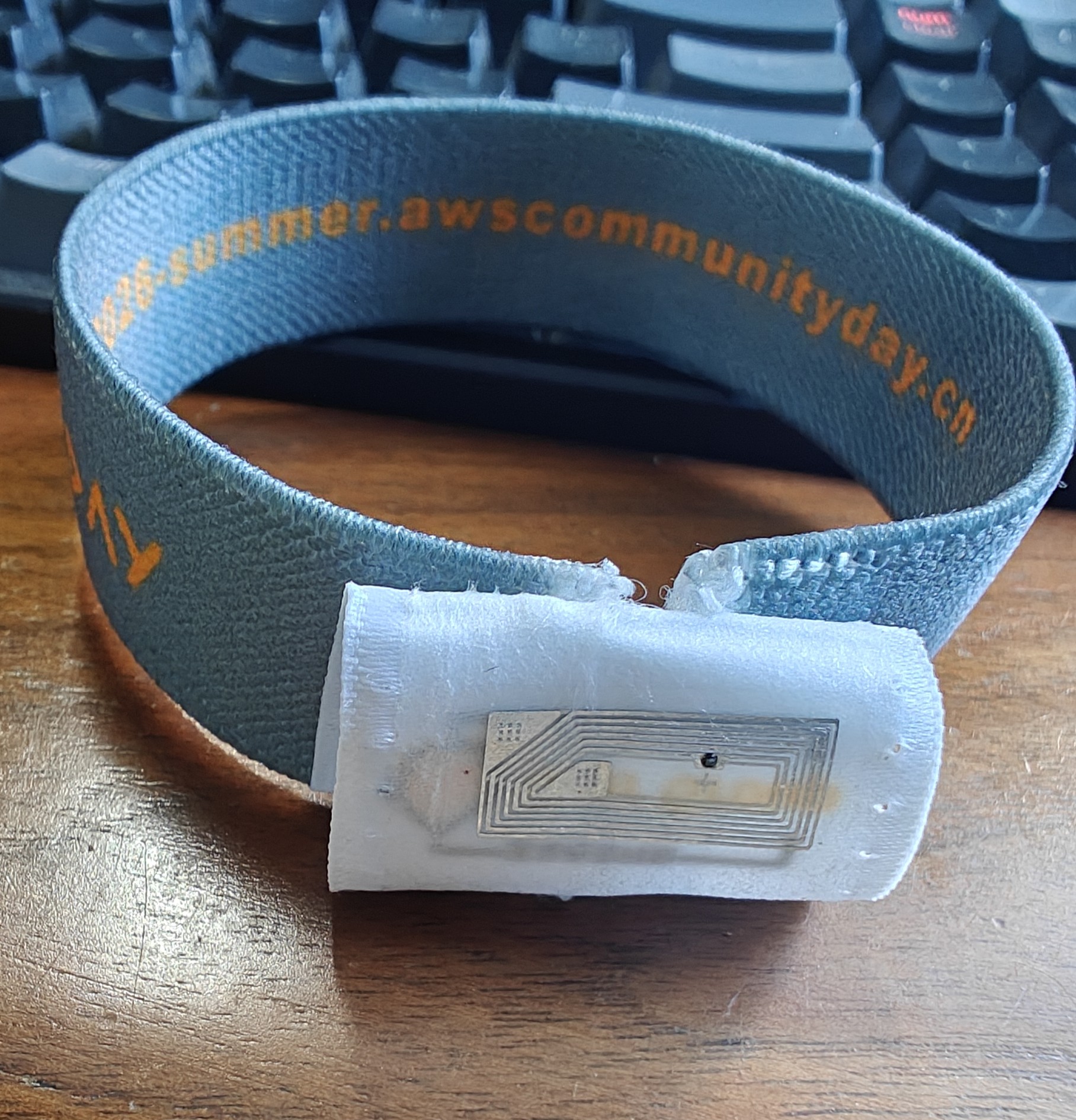
At Community Day, wristbands may ship with an official activity landing URL (NDEF URI record). That content is not permanent unless explicitly locked — you can overwrite it with your own NDEF message using the steps below.
How to Write Your Wristband
If you have not saved the factory content yet, go to Back Up Your Wristband First above before continuing.
Step 1 — Enable NFC
- Android: Settings → Connected devices → Connection preferences → NFC → On
- iPhone: NFC is always on for background reading; writing requires a third-party app (e.g. NFC Tools)
Step 2 — Compose your NDEF message
In NFC Tools → Write → Add a record, choose the record type (URI, Application, etc.). You can stack multiple records in one message.
Step 3 — Write
Tap Write and hold the phone flat against the wristband chip (usually the flat pad on the band). Wait for the success confirmation.
Step 4 — Verify
Switch to Read mode and tap again. Confirm the payload matches what you intended, then test with a second phone if possible.
The animated walkthrough for writing a website URL lives under Example 1 below — follow that section step by step on your first try.
Locking is irreversible. For personal experimentation, leave the tag unlocked so you can rewrite it anytime.
Example 1 · Open the AWS UG China Community Website
URI Record Target: https://awscommunity.cn/ — the official Amazon Web Services User Group community portal.
NFC Tools steps
- Write → Add record → URL / URI
- Enter:
https://awscommunity.cn/ - Write to tag
NDEF equivalent
Record type:  URI (Well Known, type "U")
URI prefix:   0x04 (https://)
URI body:     awscommunity.cn/
Full URL:     https://awscommunity.cn/
When someone taps your wristband, their phone opens the AWS UG China community site — city groups, special-interest communities, events, and volunteer applications.
Example 2 · Launch the Android App「AWS Card Clash」
AAR + URI Target: AWS Card Clash — Amazon's free 3D card game for learning AWS architecture.
Package name
com.amazon.aws.cardclash
NFC Tools steps
- Write → Add record → Application (or "Android Application Record")
- Package:
com.amazon.aws.cardclash
- Package:
- Add a second record → URL / URI (fallback if app not installed)
https://play.google.com/store/apps/details?id=com.amazon.aws.cardclash
- Write both records in one message
NDEF record order (recommended)
Record 1 — AAR
  TNF:       External
  Type:      android.com:pkg
  Payload:   com.amazon.aws.cardclash

Record 2 — URI (fallback)
  TNF:       Well Known
  Type:      U
  Payload:   0x04 + play.google.com/store/apps/details?id=com.amazon.aws.cardclash
com.amazon.aws.cardclash → add Play Store URI fallback → Write → tap the wristband.iOS does not support AAR. iPhone users tapping this tag will follow the URI fallback and land on the App Store / Play Store web page. For iOS app deep links, use a Universal Link (HTTPS URL) instead.
Extension · Clock-in when you reach the office
The same AAR + URI pattern works for everyday Android apps — not just games. A common idea: stick your phone to the wristband at the company entrance and launch your work app in one tap instead of hunting for an icon.
| App | Android package name |
|---|---|
| WeCom (企业微信) | com.tencent.wework |
| DingTalk (钉钉) | com.alibaba.android.rimet |
| Feishu (飞书) | com.ss.android.lark |
Steps — identical to Example 2 above; only the package name changes:
- Write → Add record → Application → e.g.
com.tencent.wework - Add URL / URI fallback → Play Store link for the same app (optional but recommended)
- Write to the wristband
Record 1 — AAR
  Payload:   com.tencent.wework        ← WeCom example

Record 2 — URI (fallback)
  Payload:   Play Store URL if app not installed
AAR opens the app, which is usually enough to save a few seconds at the door. It does not automatically submit a punch on its own — you still confirm check-in inside WeCom, DingTalk, or Feishu unless your company gives you a check-in deep link (HTTPS or app-specific URL). If IT shares such a link, write it as a URI record (Example 1) or combine URI + AAR so the app opens straight to the punch screen.
If your company check-in lives in a WeChat mini program instead of a native app, use Example 3 (URL Link) rather than AAR.
Example 3 · Open a WeChat Mini Program
URI Record Target: A WeChat mini program — e.g. a community check-in app, event companion, or your own project mini program.
WeChat does not use AAR. The standard approach is to write a URL Link or URL Scheme generated from the WeChat Mini Program admin console as a plain URI NDEF record.
Option A — URL Link (recommended, works on iOS & Android WeChat)
Generate a URL Link in the mini program backend:
POST https://api.weixin.qq.com/wxa/generate_urllink
  ?access_token=ACCESS_TOKEN

Body:
{
  "path": "/pages/index/index",
  "query": "from=nfc&event=2026-summer-community-day",
  "expire_type": 1,
  "expire_interval": 30
}
Response gives a short link like:
https://wxaurl.cn/XXXXXX
Write that URL as a URI NDEF record — when tapped, WeChat opens and launches the mini program if it is installed on the phone.
Option B — Plaintext URL Scheme (not recommended for NFC)
Hand-built links look like this (Bonjour example):
weixin://dl/business/?appid=wxa3cd9247c890de37&path=/pages/index/index&env_version=release
Requires the mini program owner to enable “明文 Scheme 拉起此小程序” in WeChat MP admin. Even then, tapping from an NFC tag often fails with “Sorry, this page cannot be accessed” — behaviour varies by phone (e.g. some Huawei devices may work; many iPhone / other Android models do not). Opening the same link from a WeChat chat is not a reliable test for NFC.
Prefer Option A (https://wxaurl.cn/...) or a stable HTTPS profile link (e.g. https://bonjour.bio/...) for wristbands.
NFC Tools steps
- Write → Add record → URL / URI
- Paste your
https://wxaurl.cn/...link (recommended) - Write to tag
weixin:// Scheme on NFC tagsWriting a hand-built weixin://dl/business/?appid=... URI to a wristband usually does not work reliably, especially for third-party mini programs you do not operate. Typical symptoms: WeChat opens but shows “Sorry, this page cannot be accessed”; results differ by device (some Huawei phones may succeed, many others fail). Links pasted in WeChat chat may still open — that does not mean the tag will work. Use URL Link (https://wxaurl.cn/...) or an HTTPS landing page instead.
Community Day attendees can point this at any published mini program — your side project, a community tool, or an event companion app. You need developer access to the target mini program to generate valid URL Links.
Ideas for Your Own Content
Once you understand the three patterns above, the wristband becomes a pocket-sized business card:
| Goal | Record type | Example |
|---|---|---|
| Personal blog | URI | https://peterpanstechland.github.io/ |
| GitHub profile | URI | https://github.com/yourname |
| URI | https://linkedin.com/in/yourname | |
| Android app | AAR + URI fallback | Your app's package name + Play Store URL |
| Work check-in (Android) | AAR + URI fallback | com.tencent.wework, com.alibaba.android.rimet, or com.ss.android.lark |
| WeChat mini program | URI (URL Link) | https://wxaurl.cn/... |
| Plain message | Text | Your name and email |
Troubleshooting
| Problem | Likely cause | Fix |
|---|---|---|
| Phone does nothing | NFC off or wrong tap spot | Enable NFC; move slowly over the chip pad |
| "Tag not writable" | Tag locked | Use an unlocked wristband; locked tags cannot be changed |
| App doesn't open (Android) | AAR missing or wrong package | Double-check com.amazon.aws.cardclash; add URI fallback |
| WeChat doesn't open | Invalid or expired URL Link | Regenerate link in MP admin; check expiry |
| iPhone opens Safari instead of app | iOS has no AAR support | Use HTTPS Universal Links or URL Links for WeChat |
FAQ
Can I clone an access / door card onto the wristband?
Short answer: almost always no. The Community Day wristband is a fixed NTAG215 (13.56 MHz, NFC Forum Type 2) built to hold NDEF data (URLs, app launches) — not to emulate access credentials.
| Access card type | Frequency | Can NTAG215 replace it? | Why |
|---|---|---|---|
| ID card (EM4100, HID Prox, T5577) | 125 kHz (LF) | ❌ No | Different frequency — phones and the wristband are 13.56 MHz only |
| MIFARE Classic | 13.56 MHz (HF) | ❌ No | Different chip; NTAG215 has no Crypto-1 sectors to emulate |
| UID-only systems | 13.56 MHz (HF) | ❌ No | NTAG215's UID is factory-locked — it can't be changed to match another card |
| MIFARE DESFire / CPU card | 13.56 MHz (HF) | ❌ No | Strong mutual authentication (AES/3DES) — not clonable |
Only ever duplicate a card you own and are authorized to copy. Cloning someone else's badge, or a card issued by your building or employer, may break the law or local rules. Copying 125 kHz ID cards or cracking MIFARE Classic also needs dedicated hardware (e.g. Proxmark3, or a UID-writable "magic" card) — a phone plus an NTAG215 wristband cannot do it.
What's the difference between an "IC card" and an "ID card"?
A common distinction in the Chinese market:
| ID card (ID卡) | IC card (IC卡) | |
|---|---|---|
| Full name | Identification card | Integrated Circuit card |
| Typical frequency | 125 kHz (low frequency) | 13.56 MHz (high frequency) |
| Chip | Read-only ID number | Real chip with read/write memory |
| Storage | None — just a fixed UID | Bytes to kilobytes of data |
| Encryption | None (plaintext ID) | Often supported |
| Examples | EM4100, EM4200, HID Prox | MIFARE Classic/Ultralight/DESFire, NTAG215 |
| Cloneable? | Very easy (ID is broadcast) | Depends on encryption |
Your Community Day wristband (NTAG215, 13.56 MHz, with memory) is an IC card, not an ID card.
What encryption do these tags use?
"NFC" spans a family of chips with very different security levels:
| Chip / card | Security | Notes |
|---|---|---|
| 125 kHz ID card | None | Plaintext UID; trivially cloned |
| NTAG215 (our wristband) | No data encryption | Unique locked UID, optional 32-bit password (PWD_AUTH) and one-way lock bits — but NDEF content is readable by any phone |
| MIFARE Classic | Crypto-1 (broken) | 48-bit keys, per-sector Key A/B; crackable with Proxmark3-class tools — no longer secure |
| MIFARE DESFire EV1/2/3 | DES / 3DES / AES-128 | File-based, mutual authentication — considered secure |
| CPU / smart card | AES / RSA / ECC | Banking, ID, and SIM-grade security |
NTAG215 has no data encryption. Anything you write (a URL, text, contact info) can be read by anyone who taps it. Never write passwords, private ID numbers, or sensitive personal data. The optional password only limits who can rewrite or lock the tag — it does not encrypt the stored content.
Going Further · NFC Tags for Home Automation
Everything above is enough to program your Community Day wristband. This section is for readers who want to reuse the same NFC skills elsewhere — for example, sticky tags by the door or bedside. You do not need a smart home hub, Home Assistant, or any new devices to understand the idea; setup steps depend on what you already own.
The wristband tutorial focuses on sharing links and apps (NDEF URI / AAR). Home automation uses the same 13.56 MHz NTAG family, but the goal is different: tap a tag → run a routine (lights, scenes, notifications, etc.).
How it differs from “write a URL on the band”
| Community Day wristband | Typical home NFC automation | |
|---|---|---|
| Goal | Open a website or app for others | Trigger your routine when you tap |
| What matters | NDEF records (URI, Text, AAR) | Often the tag's UID (unique ID), or a URL bound to your account |
| Who reads it | Anyone nearby can tap | Usually your phone, or a fixed reader you control |
| Tag form | Wristband | Stickers, cards, key fobs — still often NTAG215 / NTAG216 |
Many automations never write a public URL onto the tag. The phone learns “when I see UID 04:A1:B2:…, run Goodnight scene.” The tag can stay blank or keep a harmless label record.
Three common paths (pick what matches your phone / home stack)
1. Phone-only automations — no hub required
Works with off-the-shelf NFC stickers and the phone you already carry:
| Platform | Typical apps | Rough flow |
|---|---|---|
| iPhone | Shortcuts (快捷指令) | Automation → NFC → scan tag once → add actions (toggle HomeKit device, open a scene, send a notification, etc.) |
| Android | MacroDroid, Tasker, Samsung Bixby Routines, vendor apps | NFC trigger → run task (toggle Bluetooth/Wi‑Fi, open smart-home app, fire a webhook) |
You buy NTAG215 stickers, stick one by the door or bed, and bind it in the app. No server, no Home Assistant — good first experiment.
2. Smart home hub — when you already run a central system
If you use a hub (examples: Home Assistant, HomeKit-centric setups, or vendor clouds with NFC support in their app), the pattern is:
- Register the tag in the hub's mobile app (or write a hub-specific URL).
- Create an automation: “When tag X is scanned → run script / scene.”
- Place tags at entry, bedside, desk for Leave home, Good night, Focus mode, etc.
Home Assistant is a popular open-source option: the Companion app can write NFC tags that map to automations on your HA instance. You do not need this for the Community Day wristband; it is one path among many if you already self-host HA or plan to later.
Other ecosystems (Mi Home, Aqara, HomeKit-only households, etc.) vary — check whether your vendor app supports NFC triggers before buying a pack of tags.
3. Write a webhook URL on the tag — flexible, but mind security
Same technique as Example 1 in this guide: use NFC Tools to add a URI record pointing at an HTTPS endpoint that starts a scene (Home Assistant webhook, a small cloud function, IFTTT-style services, etc.).
- Pros: Works on any phone that opens the link; no special app binding step.
- Cons: Anyone who reads the tag sees the URL. Use a long random path, HTTPS only, and treat the tag like an unlocked light switch — fine indoors, risky on a public wristband.
See the FAQ above: never put passwords or API keys on the tag.
Fixed NFC reader (optional, advanced)
Instead of unlocking your phone each time, a fixed reader (e.g. ESP32 + PN532, often via ESPHome into Home Assistant) can sit by a door or switch. The tag's UID or a small NDEF payload is sent to your hub — tap and go, no phone out of pocket. This is DIY territory; not required for phone-based automations.
Example ideas
| Location | Tap to… |
|---|---|
| Entry | Leave home — lights off, AC off, optional notify “I'm out” |
| Bedside | Good night — lights off, curtain scene, DND |
| Desk | Focus — desk lamp on, phone DND |
| Guest sticker | Limited action only (e.g. open guest Wi‑Fi info page) |
Takeaway
- Same chips (NTAG215-class), different playbook: automation cares about who scans and what runs, not sharing a marketing link.
- Start simple: phone + NFC sticker + one Shortcut or MacroDroid rule.
- Scale up with Home Assistant or fixed readers when you want whole-home scenes — only if that matches gear you already have or plan to buy.
Learn More
- AWS UG China Community — join city groups, apply as speaker or volunteer
- AWS Card Clash — learn cloud architecture through gameplay
- NFC Forum — global NFC standards body; NDEF, tag types, and certification
- NFC Forum technical specifications — technical deep dive
- WeChat URL Link docs — mini program link generation
- Home Assistant — NFC tags — optional; hub-based home automation with NFC