Rhino Pi X1 + AidLux Hands-On: From Flashing to the HP-Regen Desk Game
This is the getting-started guide for the rhinopi-x1-aidlux repo. By the end you will have:
- A Rhino Pi X1 running the AidLux fusion system (Android 13 + Ubuntu 22.04)
- Comparable output from an environment check, a USB camera probe, and a CPU / OpenCV / NPU micro-benchmark
- A browser-based upper-body game, HP Regen (工位回血): the camera watches whether you've been sitting too long and how your posture is, and after 25 minutes it walks you through a 2-minute stretch round
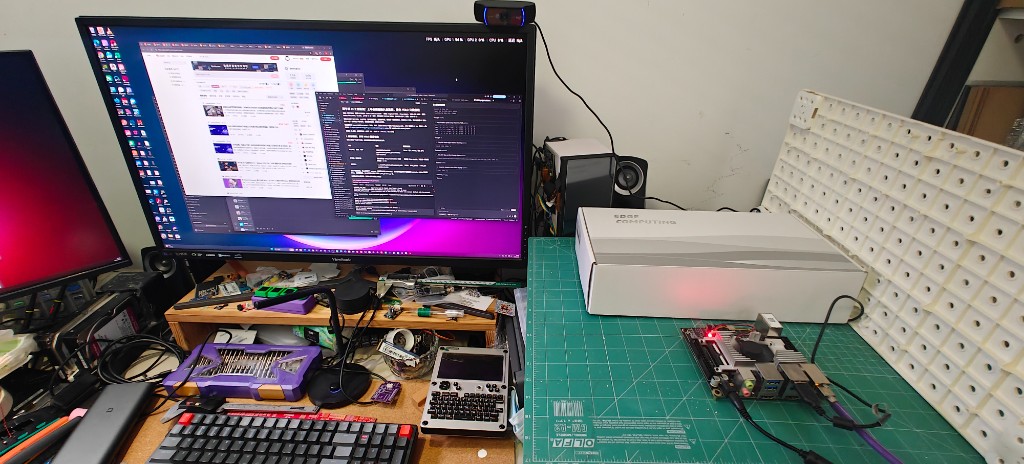
Every command, version and number here comes from the docs, code and test logs in the repo (commit 5d97e02, 2026-10-08). The numbers were measured on one bring-up board (2026-09-14 / 09-15 / 09-28); trust what your own board prints. Official references: Rhino Pi X1 docs, AidLux docs, developer portal.
What You Need
| Item | Notes |
|---|---|
| Rhino Pi X1 | Qualcomm QCS8550 (kalama) |
| 12V 5A power supply | DC 5.5×2.5 mm into DC_IN. Not a phone charger; Type-C does not power the board |
| Windows PC | For flashing (QFIL) and ADB; same LAN as the board |
| USB-A to USB-C cable | PC USB-A ↔ board TYPE-C, for ADB and flashing |
| Ethernet cable | Into the board's WAN port (eth0); wired is recommended |
| USB (UVC) camera | The repo was tested with a Logitech C920; plug it into a board USB-A port |
| Optional | HDMI monitor (on HDMI_OUT), keyboard and mouse |
On your PC, clone the repo first:
git clone https://github.com/peterpanstechland/rhinopi-x1-aidlux.git
cd rhinopi-x1-aidlux
The folders you'll use:
| Folder | Purpose | Port |
|---|---|---|
examples/01_env_check | System, Python, AidLite, camera detection | — |
examples/usb_camera | Find the USB capture node, grab a still, measure MJPG FPS | — |
examples/02_compute_bench | CPU / OpenCV / NPU micro-benchmark | — |
examples/04_mediapipe | BlazePose on AidLite (the game depends on it) | :8091 |
examples/06_shadow_puppet | The HP Regen game | :8090 |
03_modelfarm, 05_yolo and 07_csi_camera are still marked "to be written" in the repo and are not covered here.
Step 1: Wiring and Power-On
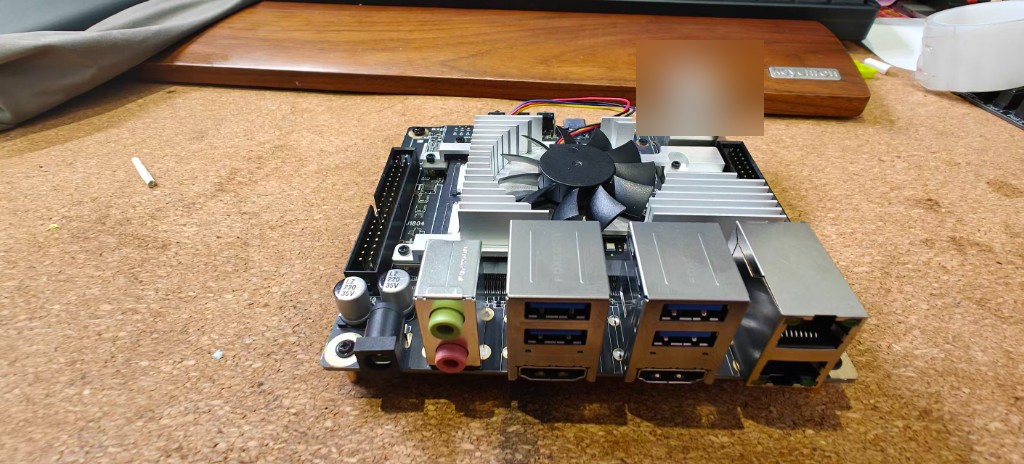
| Cable | Where | Why |
|---|---|---|
| 12V 5A power | DC_IN | The only power input; the board boots by itself |
| USB-A to USB-C | Board TYPE-C | ADB and flashing. Don't plug the camera here |
| Ethernet | WAN | Uplink eth0. The 3 LAN ports are the onboard LAN 192.168.1.1/24 (br-lan) — don't SSH into that subnet |
| HDMI | HDMI_OUT | Optional. HDMI_IN is a capture input, not a display output |
| Keyboard, mouse, camera | USB-A (4 ports) | Not TYPE-C |
Order: plug DC_IN first. The power LED stays red while booting; it's up when the LED is solid green and the fan spins. If it stays red with no fan, press POWER. Then plug in TYPE-C and check on Windows:
adb devices -l
You should see product:kalama model:RhinoPi_X1. The official hardware info and power header pages are the reference for the ports.
If your board already runs AidLux and ssh aidlux@<board-ip> works, skip to Step 3. Flashing wipes user data.
Step 2: Flash and Set Up AidLux
2.1 Pick an image
Images are on the AidLux file site (you may need to log in to download). The table shows what the repo found on 2026-09-14; check the image list page for the latest before downloading.
| Purpose | Folder | File at the time | Size |
|---|---|---|---|
| Windows flashing tools | eda4c1da | QPST_2.7.496.zip, USB_Driver_qud.win.1.1_installer_10061.1.zip, platform-tools.zip | 60 / 18 / 6 MB |
| Fusion full package | 4ccc30f9 | RhinoPi-X1.T04_LA.user.2025121609.aidlux.zip | 4.74 GB |
| Android only | a521955b | RhinoPi-X1.T04_LA.user.2026070119.zip | 1.85 GB |
| AidLux only | 154a82b5 | aidlux_3.0.0.124_enterprise_qc8550_lu2204_signed.zip | 3.05 GB |
How to choose:
- New board, fewest steps: the full package, then initialize AidLux to 100% in Android.
- Board is already newer than the full package (e.g. build
2026070119vs. package2025121609): the full package would downgrade it. Go split: flash Android first, then install AidLux withinstall.bat. - OTA is only for boards already on the fusion system that just want an upgrade.
Official steps: full package install, split install.
2.2 Install the Windows tools
- Unzip
USB_Driver_qud.win.1.1_installer_10061.1.zipand runsetup.exe - Unzip
QPST_2.7.496.zip, runQPST.2.7.496.1.exe, click Next all the way - QFIL ends up at
C:\Program Files (x86)\Qualcomm\QPST\bin\QFIL.exe - If you don't have ADB yet, use
platform-tools.zipfrom the same folder
2.3 Enter download mode (EDL)
Back up first. Don't unplug power while flashing or initializing AidLux.
Target the USB device, not network ADB (ip:5555):
adb -s <usb-serial> reboot edl
The board turns into a Qualcomm 9008 port and adb devices goes empty — that's expected.
2.4 Flash with QFIL
- Configuration → FireHose: Download Protocol
0-Sahara, Device Typeufs, tickReset After Download - Select Port
9008, Build TypeFlat Build - Programmer:
xbl_s_devprg_ns.melffrom the unzipped package (set the file filter to "All files") - Load XML: select all XML files offered (the dialog appears twice)
- Download. It took about 5 minutes in the repo's run; after "successful" the board reboots on its own
2.5 Initialize AidLux
- Full package: swipe up on the Android home screen, open AidLux, wait for 100%.
- Split: once
adb devicessees the board again, unzip the AidLux zip and runinstall.baton Windows; after it reports Success, open AidLux on the board to finish initialization. In the repo's run it pushed a ~2.59 GB deb and installed 3 APKs.
Done when: the board boots with the fan spinning, AidLux reaches 100%, and you can reach it again via adb devices or the LAN. If flashing fails, contact the vendor (APLUX) support; this guide does not cover forced flashing.
Step 3: Log In
The default username and password are aidlux / aidlux. Change the password after your first login. Pick one way in:
- HDMI desktop: monitor plus keyboard and mouse
- Web desktop: open
http://<board-ip>:8000/loginin a browser - SSH: what you'll use to copy code and run scripts
ssh aidlux@<board-ip>
Find the board IP in your router's DHCP list, or check the eth0 address from the HDMI desktop or adb shell.
Step 4: Copy the Examples to the Board
All commands below assume the code lives in ~/rhinopi-lab/examples/ on the board. On your PC, from the repo root:
ssh aidlux@<board-ip> "mkdir -p ~/rhinopi-lab"
scp -r examples aidlux@<board-ip>:~/rhinopi-lab/
Copy the whole examples folder, not just 06_shadow_puppet: the game imports pose_tracker.py and camera.py from ../04_mediapipe and ../usb_camera.
The repo's board couldn't reach pypi.org, and the image ships without MediaPipe. So pose detection uses the official BlazePose TFLite models already on the fusion system (/opt/aidlux/app/aid-examples/pose_detect_track/models/), loaded through AidLite. No extra pip install is needed.
Step 5: Environment Check
cd ~/rhinopi-lab/examples/01_env_check
python3 check_env.py
The script prints a large JSON report (system, CPU, memory, disk, AidLite-related dpkg packages, /dev/video*, lsusb, temperatures), followed by a summary like:
=== summary ===
host     ...  kernel 5.15.178-android13-...
python   3.10.12
module   numpy: OK  ...
module   cv2: OK  ...
module   aidlite: OK  ...
module   mediapipe: MISSING  ...
aid-pkg  ...
mms      ...
video    yes
...
What matters is that aidlite and cv2 are OK; mediapipe: MISSING is normal. The repo's freshly flashed board shipped with Python 3.10.12, numpy 1.26.4, OpenCV 4.13.0, AidLite 2.3.2.251 and the aidlite-qnn236 NPU plugin.
If import aidlite fails, install it with aid-pkg (the NPU backend must match the QNN version on the model card — qnn236 on the repo's board; don't follow old docs that say qnn216):
sudo aid-pkg update
sudo aid-pkg install aidlite-sdk
sudo aid-pkg install aidlite-qnn236
python3 -c "import aidlite; print(aidlite.get_py_library_version())"
The fusion image's Ubuntu sources are live; a full upgrade can leave kmod, systemd and friends half-configured against vendor packages (the repo author hit this — the fix is under Troubleshooting below). Install single packages instead: sudo apt install <package>, or use aid-pkg.
Step 6: USB Camera
Plug the camera into a board USB-A port, then:
lsusb
ls -l /dev/video*
v4l2-ctl --list-devices
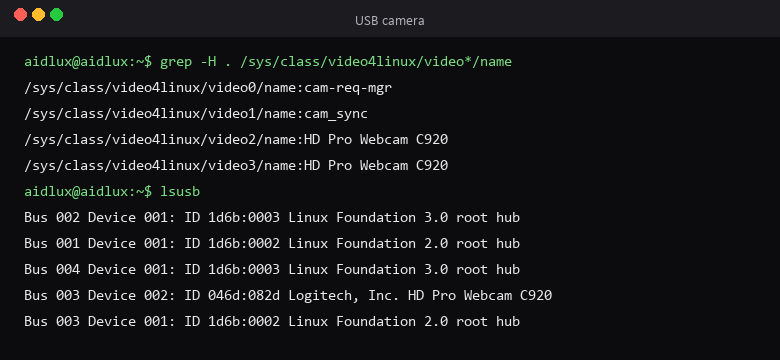
Key point: there are video nodes even with no camera plugged in, so don't write cv2.VideoCapture(0).
| Node | Name | Can capture? |
|---|---|---|
/dev/video0 | cam-req-mgr | No, Qualcomm camera request manager |
/dev/video1 | cam_sync | No |
/dev/video2 | HD Pro Webcam C920 | Yes — OpenCV uses this |
/dev/video3 | same C920 | No, UVC metadata |
/dev/video32 /dev/video33 | msm_vidc_decoder | No, hardware decoder |
Run the probe:
cd ~/rhinopi-lab/examples/usb_camera
python3 probe.py
probe.py picks the capture node whose /sys/class/video4linux/*/name contains webcam / camera / uvc (falling back to video2), opens it at 1280×720 with MJPG, saves a still to ~/rhinopi-lab/captures/usb_preview.jpg, and measures loop FPS. The summary looks like:
=== summary ===
opened  /dev/video2  HD Pro Webcam C920
frame   (720, 1280, 3)  MJPG
still   /home/aidlux/rhinopi-lab/captures/usb_preview.jpg
fps     ...  avg ... ms
The repo measured 30.46 fps (32.82 ms per frame) with the C920. YUYV at the same resolution only gives 10 fps over USB 2.0, so always set MJPG first. Use --index if auto-detection picks the wrong node.
Step 7: CPU / NPU Micro-Benchmark
cd ~/rhinopi-lab/examples/02_compute_bench
python3 bench.py
# CPU / OpenCV only: python3 bench.py --skip-npu
# more iterations:   python3 bench.py --loops 50 --warmup 10
The NPU test uses the YOLOv5s W8A8 model that ships with the image, with TYPE_QNN236 + TYPE_DSP:
/usr/local/share/aidlite/examples/aidlite_qnn236/data/qnn_yolov5_multi/cutoff_yolov5s_640_sigmoid_w8a8.qnn236.ctx.bin
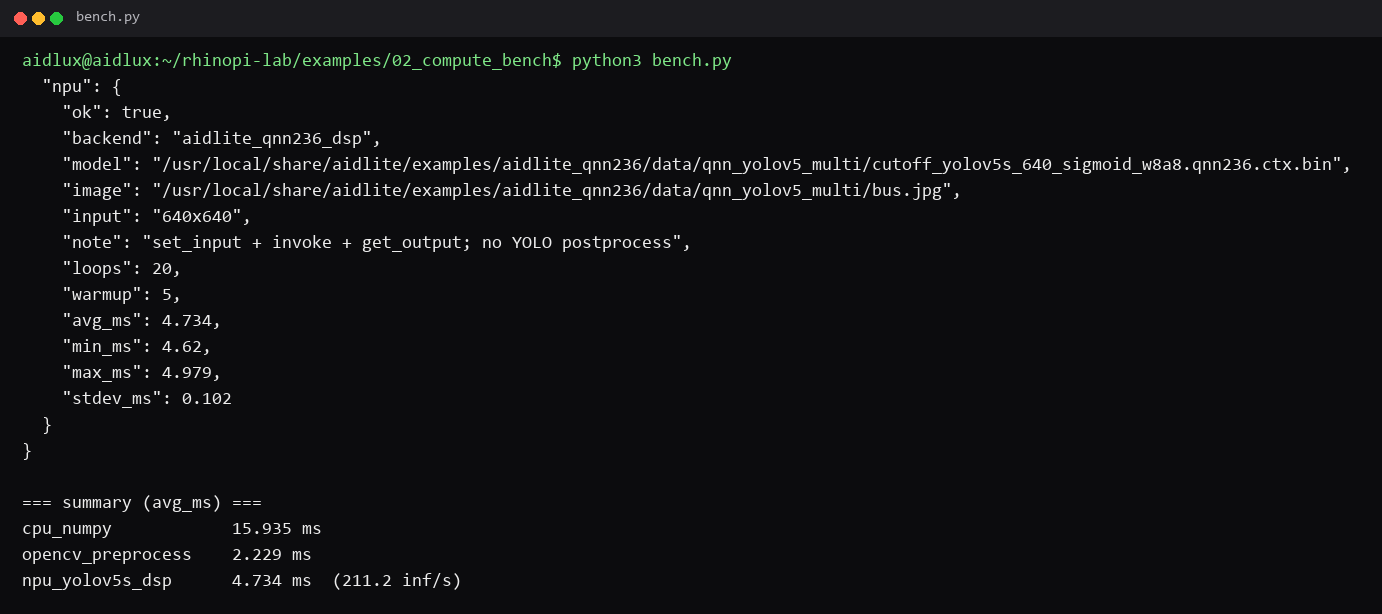
Repo board, 2026-09-14, 640 input, 5 warmup + 20 loops:
| Backend | Avg | Min | Max |
|---|---|---|---|
| numpy | 15.841 ms | 11.556 | 23.960 |
| OpenCV preprocess (1280×720 → 640 + blur) | 3.446 ms | 0.760 | 18.291 |
| AidLite QNN236 DSP (YOLOv5s W8A8) | 4.772 ms | 4.634 | 4.967 |
The NPU timing only wraps set_input + invoke + get_output — no letterbox and no YOLO post-processing — about 210 inferences/s. Before comparing with a Model Farm card, check whether that number also excludes pre/post-processing. If you see npu ... FAIL model not found, the ctx file is missing; check aidlite-qnn236.
Step 8: Run HP Regen
cd ~/rhinopi-lab/examples/06_shadow_puppet
python3 game.py --demo
--demo shrinks the sitting interval to 45 seconds and resets today's progress, so you can play a full round right away. The terminal prints:
loading upper-body Pose...
npu ok
open  http://192.168.88.216:8090/
sit interval 45s  acts=6  phase=away
frame 20 fps=... pose=True ...ms hand=0ms ui=...ms enc=...ms phase=monitor/ ...
The http://192.168.88.216:8090/ printed by game.py is the repo's bring-up board, hard-coded in the script. The server actually listens on 0.0.0.0:8090, so open http://<your-board-ip>:8090/.
Open http://<board-ip>:8090/ on your PC and sit in front of the camera with your head, both shoulders and both hands in frame.
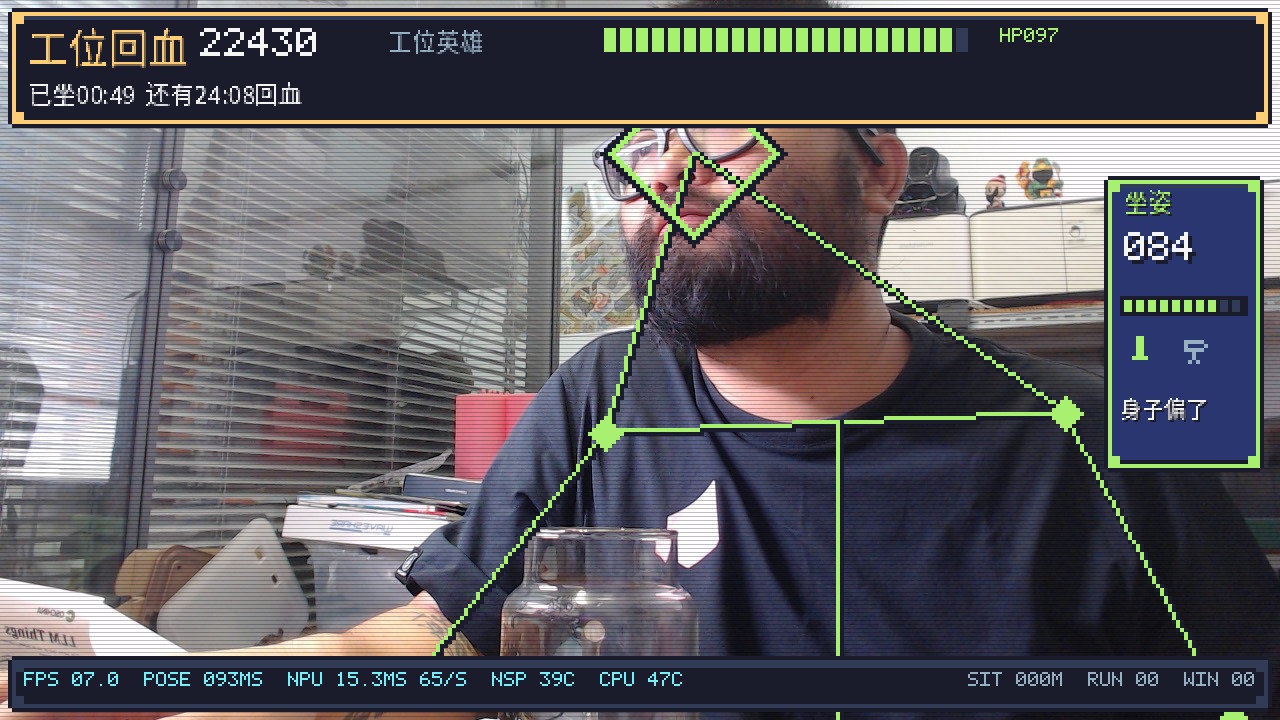
What you'll see:
- Sitting screen: the live camera with a pixel stick-figure overlay, an HP bar plus "sat for / time until regen" at the top, and a 0–100 posture score with the current worst issue on the right (head forward, tilted shoulders, off-center, too close to the screen, slumping)
- Footer:
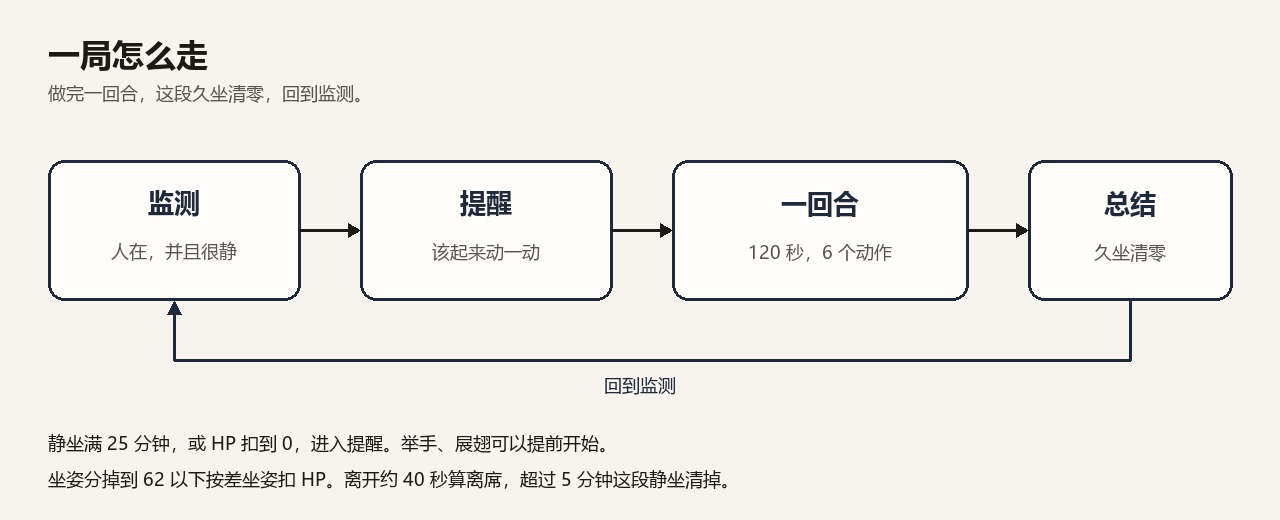
FPS,POSE ms,NPU ms, NSP / CPU temperatures, plusSIT/RUN/WINcounters - Alert: once you've sat for the interval (25 minutes by default) or bad posture drains HP to zero, an alert appears; start moving to begin a round. While monitoring, raising your hands or spreading your arms for about 0.5 s also starts one early
- Round: split screen — a pixel stage with a Minecraft-style avatar that mirrors you on top, the live view, countdown and posture below. A round is 120 seconds, with 6 of the 8 acts picked in rotation. Each act advances only when you clear its challenge; whatever is left when time runs out counts as missed
- Summary: a grade (S/A/B/C), time and points per act, plus a posture grade for the round. After about 13 seconds (or a hands-up) it returns to monitoring with the sitting timer reset
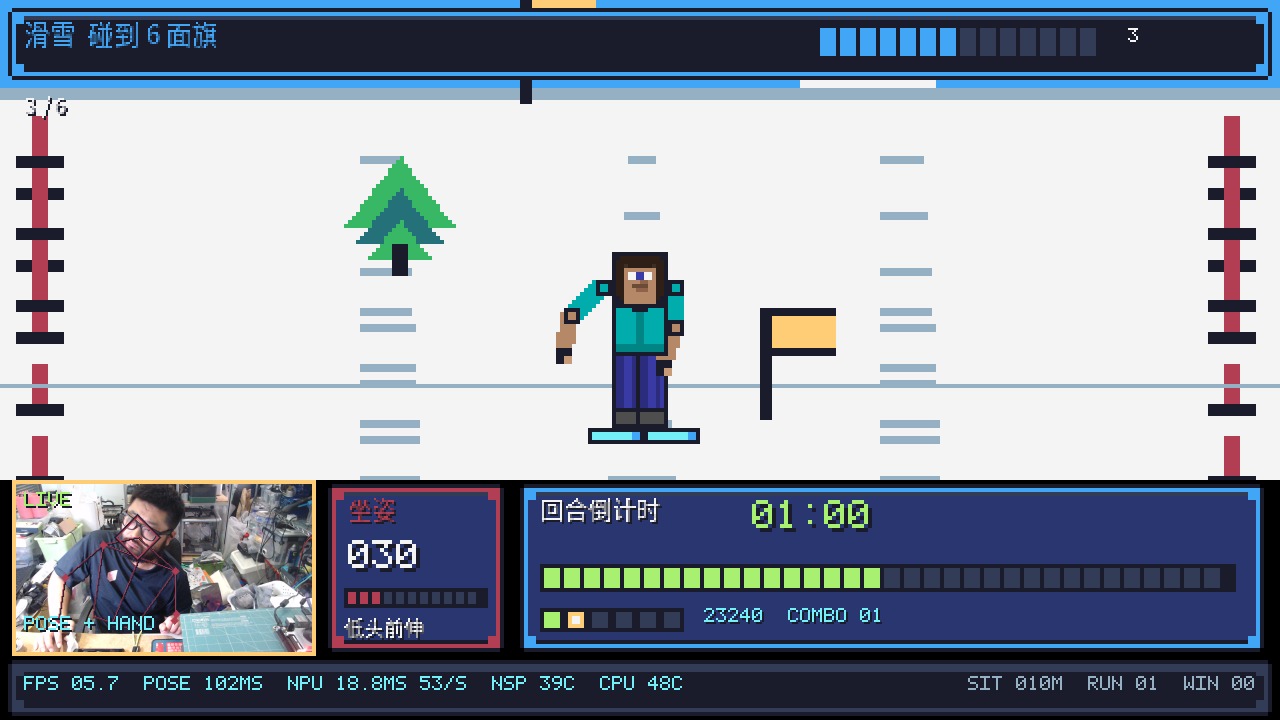
The 8 acts and their challenges (as currently coded in loop.py):
| Act | Challenge |
|---|---|
| Wings | Spread both arms fully and hold for 5 s |
| Eagle | Flap 8 times to reach the flag |
| Wave | Wave left and right to see off 10 people |
| Ski | Tilt your head left / right to hit 6 flags and dodge trees |
| Piano | Hand landmarks (21 points); press 8 yellow keys |
| Jump | Bounce up in your chair to clear 5 cacti |
| Turn | Turn your head 3 times each way |
| Nod | Nod 6 times |
In another terminal you can watch the status JSON (phase, hp, sit_s, score, posture, …):
curl http://<board-ip>:8090/status
After the demo, run it for real:
python3 game.py                                   # 25-minute reminder, 6 acts per round
python3 game.py --interval-min 15 --round-acts 6  # custom interval and act count
python3 game.py --no-npu                          # skip the NPU pulse in the footer; gameplay unaffected
python3 game.py --reset                           # clear today's progress
Other flags: --index picks the camera node, --port changes the port (default 8090), --accel selects GPU (default) / CPU / DSP, --no-web disables the web page, --seconds N exits after N seconds, --save PATH saves the last frame on exit. Stop with Ctrl+C; progress is saved per day in save.json next to the script.
Repo measurements (C920, TFLite GPU): the sitting screen runs at about 7–13 fps; POSE takes about 70–110 ms with a person detected and about 33 ms without; the footer's NPU pulse is about 9–20 ms (once every 18 frames, including letterbox, hence larger than the 4.7 ms benchmark).
Preview the Screens Without a Board
render_probe.py renders every screen with a synthetic pose. It only needs numpy and OpenCV — no camera, no AidLite. It was verified on x86 Linux with opencv-python-headless + numpy on 2026-10-08:
cd examples/06_shadow_puppet
python3 render_probe.py --out /tmp/ui
It writes 15 images such as 01_monitor.jpg, 03_alert.jpg, 10_act_*.jpg (one per act) and 30_summary.jpg. The game-flow tests also run offline once 04_mediapipe is on PYTHONPATH:
PYTHONPATH=../04_mediapipe python3 test_loop.py # last line should be: loop ok
How It Works
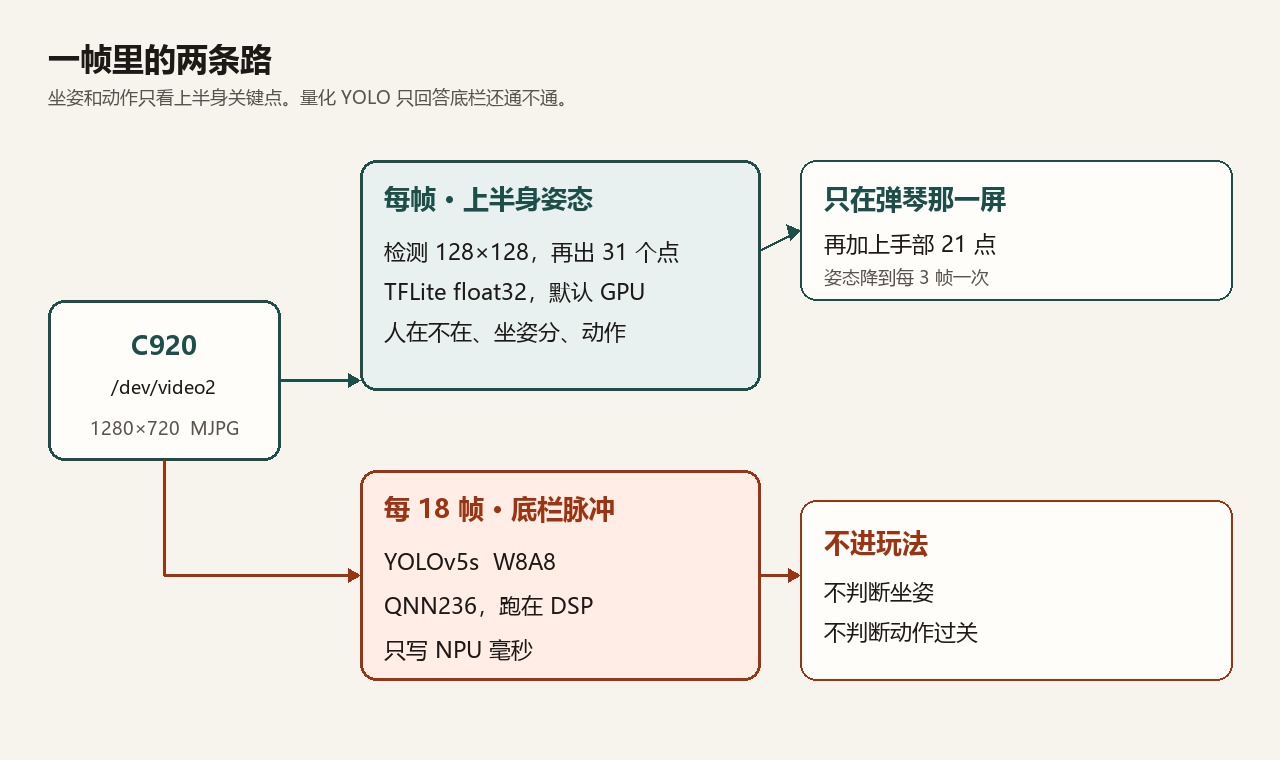
Each frame takes two paths:
- Upper-body pose (drives the game):
04_mediapipe/pose_tracker.pyloads the official BlazePose models via AidLite —pose_detection.tflite(128×128, 896 candidate boxes), thenpose_landmark_upper_body.tflite(256×256, 31 points). Config:TYPE_TFLITE+TYPE_FAST,TYPE_GPUby default, float32 input. Detection threshold 0.42, landmark smoothing 0.35, and left/right shoulders are corrected for the mirrored view. - NPU pulse (footer only):
NpuPulseinstats.pyfeeds the current frame to YOLOv5s W8A8 (QNN236 DSP) once every 18 frames, purely to show the NSP is alive. It plays no part in posture or act detection.
The piano screen lazily loads palm_detection.tflite + hand_landmark.tflite (21 points) from hand_track/models/; while it's active, hands run every frame and pose drops to every third frame.
Main files:
| File | Role |
|---|---|
game.py | Main loop: capture → pose → gestures / posture → state machine → render; built-in HTTP server (/ page, /stream MJPEG, /status JSON) |
gestures.py | Turns landmarks into motion signals (wings, hands-up, wave, head tilt, nod, …) |
posture.py | Posture score: head forward, shoulder tilt, off-center, too close, slumping; below 62 counts as bad posture; the baseline is recalibrated after each round |
loop.py | State machine away → monitor → alert → round → summary, HP, scoring, save.json |
scenes.py / puppet.py / overlay.py / pixel_ui.py | The 8 pixel scenes, avatar, overlays and UI |
hand_tracker.py | 21-point hands for the piano screen |
stats.py | Thermal readings + NPU pulse |
Key parameters (all in loop.py): while sitting, HP drains at 100 / interval per second; bad posture drains an extra 100 / 240 per second (about 4 minutes to empty on its own); you count as present after about 0.7 s in frame, away after about 40 s out of frame, and being away for more than 5 minutes resets the sitting timer.
Troubleshooting
| Symptom | Check first |
|---|---|
| Red LED only, fan not spinning | Is it 12V 5A, plugged into DC_IN? Press POWER |
adb devices is empty | TYPE-C seated? Charge-only cable? Qualcomm driver installed? |
| No 9008 port | Run adb reboot edl against the USB device again; if still nothing, power-cycle |
| QFIL fails | Programmer and XML from the same package? Device Type ufs? |
| AidLux init stuck | Wait a few minutes; is the supply 12V 5A? |
| Can't ping / SSH | Cable in WAN (LAN puts you on 192.168.1.1/24)? Same subnet? Password changed? |
:8000 won't open | Has AidLux finished initializing? Use SSH instead |
import aidlite fails | dpkg -l | grep aidlite, then reinstall with aid-pkg as in Step 5 |
VideoCapture(0) black / won't open | 0 is cam-req-mgr; UVC capture is usually video2 — check v4l2-ctl --list-devices |
| 720p at only ~10 fps | FourCC is still YUYV; set MJPG (probe.py / camera.py already do) |
no USB capture node | Camera not on USB-A, or node name lacks webcam / camera / uvc; pass --index |
| Posture score jumps around | Only half a shoulder in frame; aim the camera at your upper body |
| Footer NPU shows off | Check aidlite-qnn236 and the ctx file; gameplay doesn't need it — use --no-npu |
| FPS drops on the piano screen | Expected: a second model (hands) is loaded for that screen |
ModuleNotFoundError: pose_tracker | You copied a single folder; copy the whole examples to ~/rhinopi-lab/ |
Ran apt upgrade by mistake and kmod / libkmod2 versions don't match
Typical error:
kmod : Depends: libkmod2 (= 29-1ubuntu1) but 29-1ubuntu1.1 is installed
E: Sub-process /usr/bin/dpkg returned an error code (1)
The vendor package mod-blacklist owns /etc/modprobe.d/blacklist.conf, so the new kmod can't overwrite it, and systemd / udev are often left unpacked but unconfigured. Don't reboot yet. Fix just this pair and don't upgrade everything again (this is how the repo author fixed the board on 2026-09-15):
sudo cp -a /etc/modprobe.d/blacklist.conf /etc/modprobe.d/blacklist.conf.bak
cd /tmp
apt-get download kmod=29-1ubuntu1.1
sudo dpkg -i --force-overwrite /tmp/kmod_29-1ubuntu1.1_arm64.deb
sudo DEBIAN_FRONTEND=noninteractive apt-get --fix-broken install -y \
  -o Dpkg::Options::="--force-confold"
sudo dpkg --audit    # should print nothing
dpkg -i may complain libkmod2 is not configured yet; just run --fix-broken afterwards. Community write-up: apt upgrade fix.
Next Steps
- Repo: peterpanstechland/rhinopi-x1-aidlux — read
docs/01→docs/06for detailed test logs and the photo checklist (in Chinese) - Model Farm: aiot.aidlux.com/zh/models, filter by
Qualcomm QCS8550, pull models on the board withmms(the repo'sdocs/04-modelfarm.mdis in progress) - CSI cameras: MIPI CSI (the repo's
07_csi_camerais still to be written) - Troubleshooting: AidLux forum
This guide is part of the Edge Devices Guides series.